Visual FoxPro End of Life: How to Plan Your Next Move
Visual FoxPro 9.0 mainstream support ended on January 12, 2010. Extended support closed on January 13, 2015. Those dates marked a change in Microsoft's support status, not a change in the software's behavior. Applications built on VFP 9 kept running on the same hardware and the same Windows installations well past both dates. Some of them are still in daily production use in 2026, more than a decade after Visual FoxPro end of life officially took effect.
What Visual FoxPro End of Life Means for Existing Applications
A VFP system is made of several separate pieces.
- Two runtime files, vfp9r.dll and vfp9t.dll, let the compiled application execute.
- Source files – .prg, .scx, .frx, .vcx – sit apart from that build; these are what a developer would open to change anything.
- The data lives in .dbf tables, usually tied to a .dbc container, with memo content in .fpt files and indexes in .cdx or .idx.
Support and patching stopped for all of these once FoxPro end of life took effect. The runtime kept executing on current Windows machines regardless. That's the detail a business weighs when deciding what to do next: a support date on a calendar, against years of continued daily use on the same hardware.
Risks of Running an Unsupported FoxPro System
Security patches for VFP 9 stopped in January 2015. Any vulnerability found in the runtime after that date stays there, unpatched, indefinitely. Fewer developers know .scx and .vcx syntax each year – Microsoft hasn't touched the language since SP2 in 2007. Many VFP deployments also carry 32-bit dependencies, and each new Windows release leaves less room to run them without workarounds. Risk builds slowly here: patches that never arrive, specialists who retire without replacements, hardware that eventually forces the question. Then a routine Windows upgrade exposes how little margin was left
FoxPro Migration, Modernization, or Continued Maintenance?
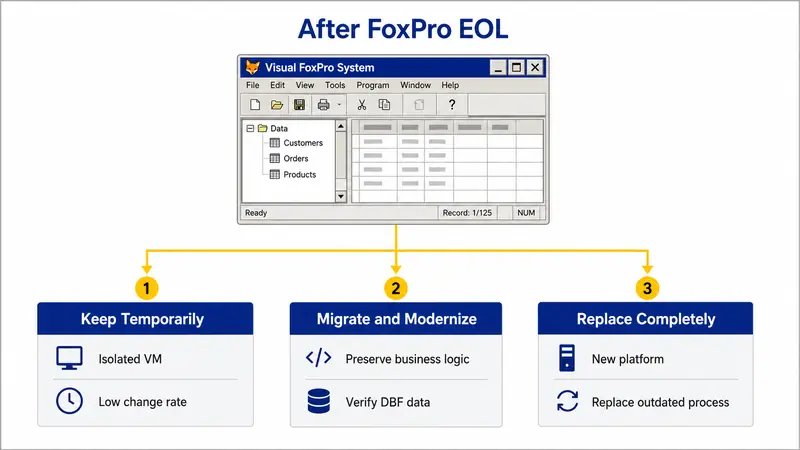
Three things usually decide what happens to an aging VFP system: how critical it is to daily operations, how documented its logic is, and what budget leadership will commit. Most organizations choose between three routes: leaving the system as-is, migrating its data and logic to a new platform, or replacing the application outright.
Keep the Existing Application Running Temporarily
Teams that need more time often move the system onto a dedicated virtual machine, cut off from general network access, and rely on periodic snapshots as a safety net. This works best when the application changes rarely and the business risk of downtime is low. It should come with a review date. Without one, a temporary arrangement tends to become permanent by default, and the risks described earlier keep building in the background.
Access and Verify FoxPro DBF Files Before Migration
Before committing to any migration path, someone needs to see what the tables actually contain. This step happens at the data level, separate from the FoxPro application itself. It means opening the .dbf files, checking field structures, sampling records, and reviewing memo content stored in the .fpt files, all without touching the original development environment. Skipping this step is a common reason migrations run into surprises months later.
Replace the Entire FoxPro System
Full replacement fits smaller applications, poorly documented ones, or cases where the business process has outgrown what the original system was built for. This is where visual FoxPro replacement software enters the decision – a new system, built on a different platform, that takes over the business function entirely rather than preserving the original FoxPro logic.
How to Plan a Visual FoxPro Migration
Once the decision leans toward migration, the project needs a clear starting point. A FoxPro migration works best as a defined sequence rather than an open-ended rebuild, starting with a full inventory of what exists before anything gets touched.
Inventory the Application, Data, and Dependencies
This means listing every .dbf and .dbc file in use, every external DLL the application calls, and every scheduled task or batch job that depends on it running. A system that has been in production for fifteen or twenty years often has dependencies nobody remembers until something breaks during testing.
Document Business Rules and Database Structure
Business rules typically sit inside .scx forms and .prg procedures, requiring separate extraction before they can be reproduced in a new system. The database structure itself – field types, relationships defined in the .dbc container, index definitions – needs its own documentation pass, since this logic rarely exists anywhere outside the FoxPro files themselves.
Test the Migrated System Before Cutover
Running the old and new systems in parallel against the same input data, for a fixed period, catches discrepancies before the original system gets retired. Record counts, calculated fields, and report outputs are worth comparing directly between the two systems during this stage.
How to Choose a Visual FoxPro Alternative
Choosing a visual FoxPro alternative depends on the team's existing skills, the budget available, and how complex the original application has become over the years.Rebuild the Application With .NET and SQL Server
This path keeps the table-and-form structure close to how VFP originally worked, so a team already running a Windows-based environment can pick it up without much adjustment. SQL Server replaces the DBF tables, while .NET replaces the forms and business logic layer.
Move to a Web Application and Relational Database
This route fits situations where remote access or multi-user concurrency was a real limitation of the original desktop application. A browser-based interface removes the need to install anything locally, and a relational database such as PostgreSQL or MySQL handles the data layer.
Replace Custom FoxPro Software With a Commercial System
When the original FoxPro application was built around a generic business process – inventory tracking, accounting, scheduling – commercial visual FoxPro replacement software already covering that process can remove the need for custom development altogether.How to Move FoxPro DBF Data Without Losing Information
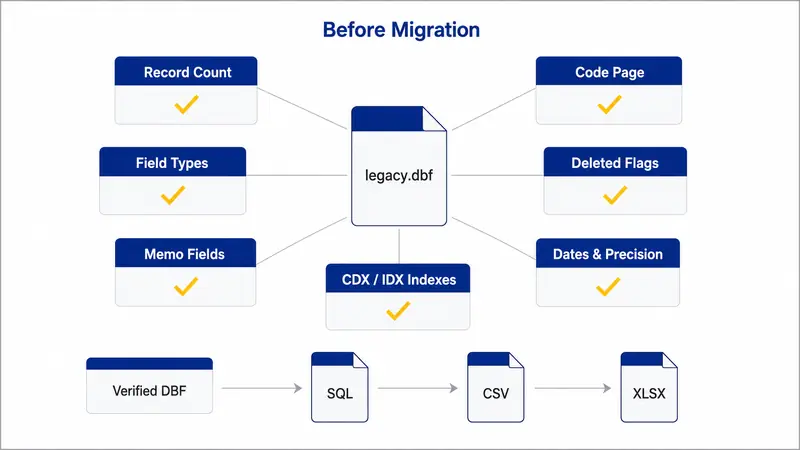
Converting FoxPro data only works if the source tables have been verified first. Skipping that check is how migrations lose records, misread memo fields, or end up with garbled text nobody notices until later.
Review DBF Tables, Fields, and Memo Data Before Export
DBF Viewer 2000 opens individual FoxPro and Visual FoxPro tables directly, without installing the original development environment. It displays field names and types, shows sample records, and reads memo content stored in the .fpt files. Deleted records in a DBF file are flagged rather than physically removed until the table is packed, and this tool shows that flag clearly before anyone assumes the data is gone. It operates at the table level. It does not open the compiled application, its forms, reports, or the relationships defined in a .dbc container.
Before exporting anything, a few things are worth checking table by table. Record counts should match what the old system reports. Date formats and numeric precision matter too, along with deleted-record flags and any indexes tied to .cdx or .idx files. Skip one of these, and the data can look fine at a glance while a report breaks on it weeks later.
DBF Viewer 2000 gives direct access to the FoxPro tables at any point, before or after a migration decision is made. Converting or migrating that data into a new system is a later, separate stage with its own planning and testing.
Once the tables are verified, exporting them to a maintained format is a separate task. DBF Converter handles batch export of DBF data to SQL scripts for MS SQL, MySQL, Oracle, or PostgreSQL, along with Excel, CSV, and other formats, with a visual filter for selecting the fields and records that matter.
Frequently Asked Questions
Can Visual FoxPro 9 applications still run on Windows 11?
Generally yes. The vfp9r.dll and vfp9t.dll runtime files execute fine on Windows 11 in most cases. Trouble shows up more often with 32-bit dependencies or external components the application calls, not with the core runtime itself.
What can you do if the FoxPro source code is missing?
Losing the .prg and .scx files doesn't mean losing the data. The compiled application and the .dbf tables often still exist and still work. Opening them in DBF Viewer 2000 shows exactly what survived and in what shape, before anyone decides on next steps.
Can modern applications read Visual FoxPro DBF files directly?
Yes, ODBC and OLE DB drivers handle this, and so do dedicated DBF tools, all without installing FoxPro. Which option makes sense depends on whether the need is a single export or an ongoing connection.
Which files should be archived after a FoxPro system is retired?
Everything, not just the tables. That means the .dbf files, .fpt memo files, .cdx or .idx indexes, the .dbc container, the compiled executable, and the runtime DLLs it needs to run.